
Pre-Acceptance Notifications for Invoices and Estimates
Sometimes a client needs to acknowledge something before they accept an estimate or pay an invoice online. For example, you might want them to confirm that they have read your terms and conditions or your delivery schedule.
You can use pre-acceptance notifications for this purpose. Turn them on for estimates, for invoices, or for both, and write a different message for each.
Prefer to watch?

Prefer a video walkthrough? Watch our QuickFile Pre-Acceptance Notifications for Invoices & Estimates tutorial on the QuickFile Help Guides YouTube channel.
How do I create a simple pre-acceptance notification?
Pre-acceptance notifications are in Design Customisation, on their own tile. They are not in Advanced CSS & HTML Customisation.
-
Click Account Settings in the top menu.
-
Click Design Customisation.
-
Click Pre-Acceptance Notifications.

-
Tick Show estimate notifications, Show invoice notifications, or both.

-
Type your message in the box under each switch you ticked.
-
Click Save.

When you save, QuickFile shows the message Your pre-acceptance settings have been updated!
Please note: The example text in each box is not saved. Each box is empty until you type your own message.
What will the client see?
The notification depends on the document the client is looking at:
- Estimates: the client sees your message when they click Accept.
- Invoices: the client sees your message when they click Pay Online.
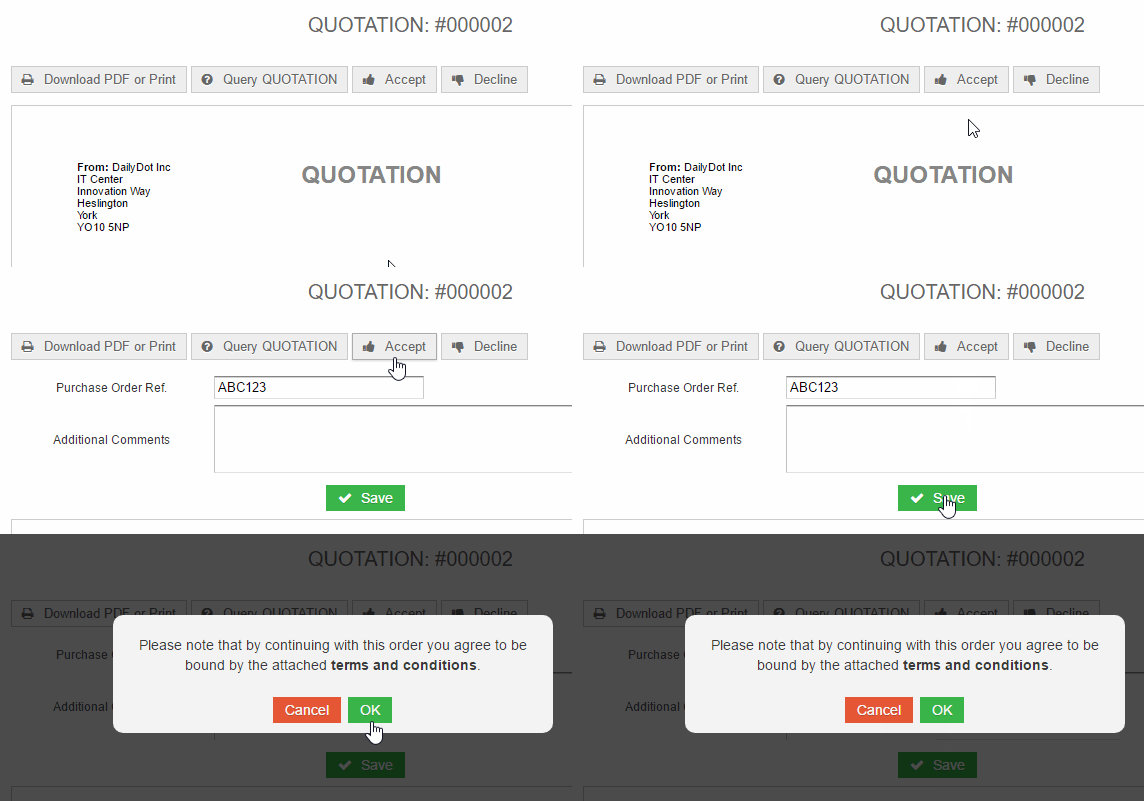
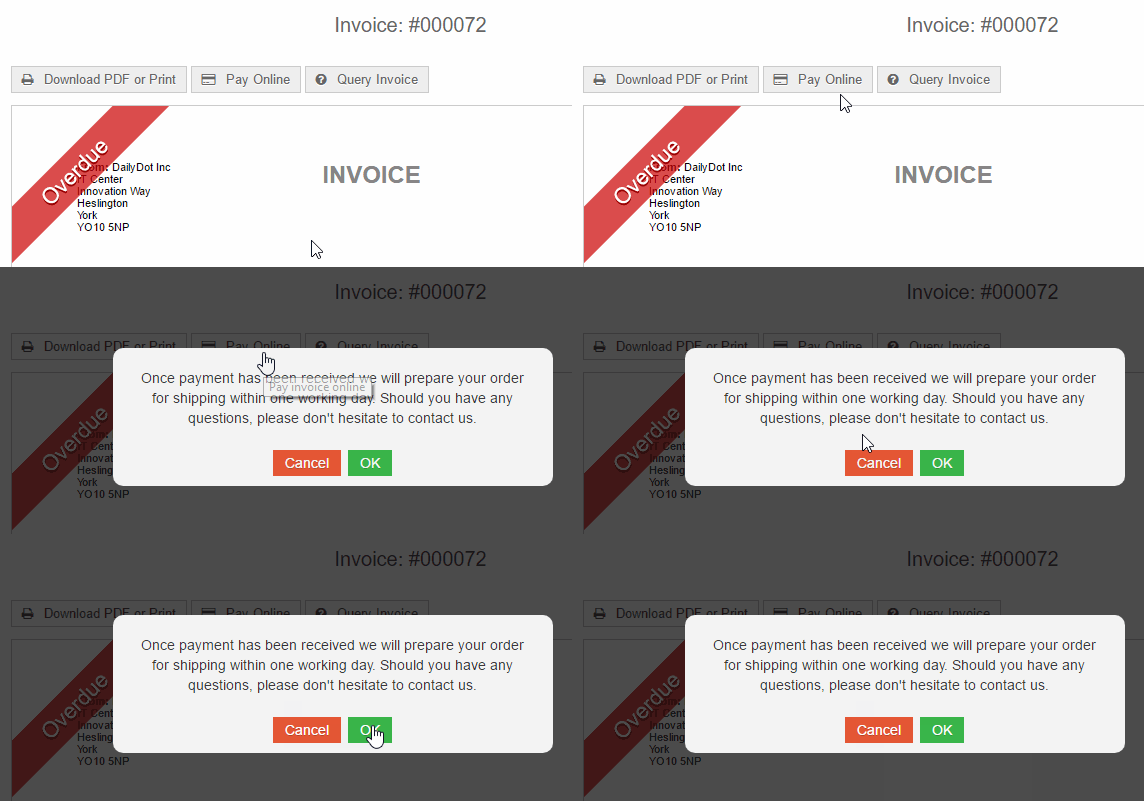
The client then clicks OK to acknowledge your message.
Show notifications only when a supplementary page is attached limits the notification to documents that have a supplementary page attached, such as your terms and conditions. To create one, see Supplementary Pages.
Warning: Test the client’s view with a test estimate or invoice before you rely on your notifications. Check the wording, the button and the notification the client sees.
What is recorded when the client acknowledges the message?
When the client clicks OK, QuickFile records an event against the estimate or invoice. The event shows when the notification was acknowledged and who acknowledged it.
Troubleshooting
The client does not see a notification.
Check that the switch for estimates or invoices is ticked, that the box under it contains your message, and that you clicked Save.
Related topics
For more on invoices, estimates and the features that go with them, these articles are a good next step.
- Attach files to your invoices: Add files to an invoice before you send it.
- Supplementary Pages: Create supplementary pages, such as your terms and conditions, and attach them to your documents.
- On estimate acceptance (community discussion): A community discussion about what clients see when they accept an estimate, with staff answers.